 Русский
Process several stereo photos
StereoPhotoView processes several photos through a job queue with shared save settings. The stereo-conv utility supports automation. The examples below vertically align every MPO in the current folder and write results to a separate directory.
Input and result
Input: several MPO/JPS files or pairs of separate JPEG images. Result: new files with consistent processing settings; the job list shows each task’s result. Start with a small group and inspect output files before processing the full collection.
Interface steps
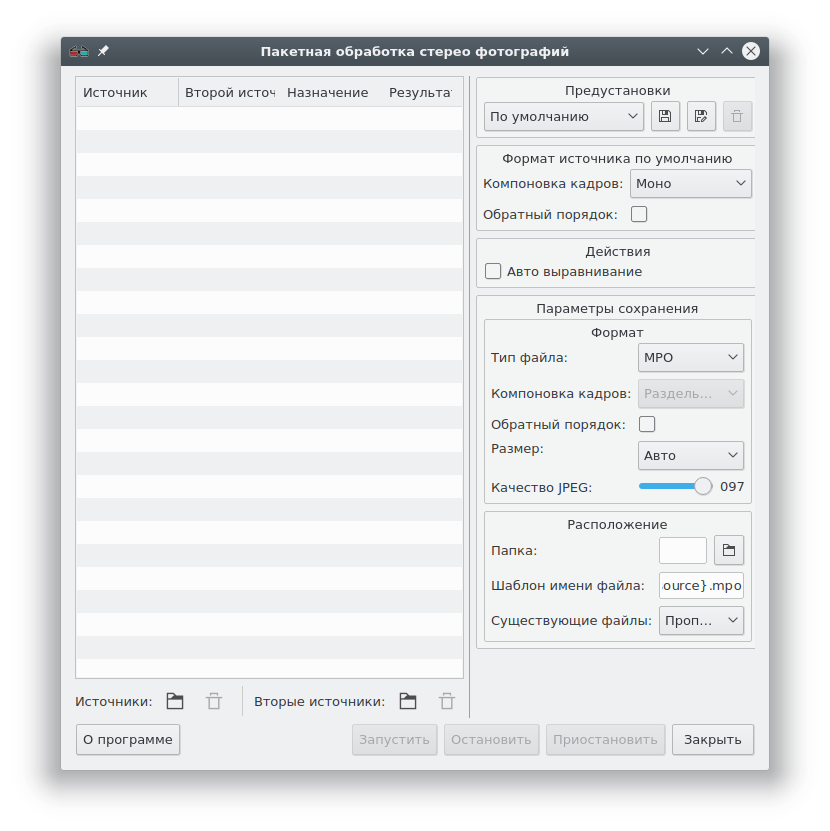
- Install the application and open the batch processing window. The reference describes sending files through the Windows Explorer context menu or opening several files with the “Batch stereo photo processing” program on Linux.
- Click “Add sources” or drag files into the queue. Use “Add second sources” for separate views; each job must contain the left image first and the right image second.
- Set the default source format for a single JPEG without a stereo descriptor. MPO and other documented automatically detected sources do not need this setting.
- Enable auto-alignment if needed and choose an evaluation area. Configure the container, layout, size, and JPEG quality.
- Under “Location”, choose a new results folder and a filename template. Inspect destination names in the queue: they must differ from the sources and from each other.
- Run the jobs using the batch window controls and inspect their results. Save useful settings as a preset.
Windows PowerShell: vertically align MPO files
Open PowerShell in the source folder. This example is for PowerShell, not cmd.exe. It stops if aligned-mpo already exists; choose a new name when running again.
Get-Command stereo-conv -ErrorAction Stop | Out-Null
$sources = @(Get-ChildItem -LiteralPath . -File -Filter '*.mpo')
if ($sources.Count -eq 0) { throw 'No MPO files found' }
$outputDir = Join-Path (Get-Location) 'aligned-mpo'
if (Test-Path -LiteralPath $outputDir) { throw 'Choose a new output directory' }
New-Item -ItemType Directory -Path $outputDir -ErrorAction Stop | Out-Null
foreach ($source in $sources) {
    $target = Join-Path $outputDir $source.Name
    & stereo-conv --operations 'auto-align:v' -o $target $source.FullName
    if ($LASTEXITCODE -ne 0) { throw "Conversion failed: $($source.Name)" }
}
Linux bash: the same task
Run in bash from the source folder. This example selects lowercase .mpo filenames without searching subfolders. Quotes preserve spaces in names.
command -v stereo-conv >/dev/null || exit 1
shopt -s nullglob
sources=( *.mpo )
if (( ${#sources[@]} == 0 )); then
    printf '%s\n' 'No MPO files found' >&2
    exit 1
fi
outputDir='aligned-mpo'
mkdir -- "$outputDir" || exit 1
for source in "${sources[@]}"; do
    stereo-conv --operations 'auto-align:v' -o "$outputDir/$source" "$source" || exit 1
done
Limitations and inspection
auto-align:v corrects vertical displacement only; see alignment for horizontal displacement and rotation. Both examples stop after a conversion error, leaving completed results in the new folder. They do not resume a failed run or overwrite earlier results. Inspect several output MPO images and the file count; automatic alignment needs visual checking.
See separate views for JPEG extraction and layout conversion for output layout choices.
Documentation basis
The batch reference and CLI reference were checked on 2026-10-05. Target version: 1.21.3.