 Русский
Open MPO and JPS files
StereoPhotoView opens MPO and JPS files as stereo pairs. MPO is detected automatically; automatic detection of a JPS layout depends on its stereo descriptor. Select the source format manually when that description is missing.
Input and result
Input: an existing MPO, JPS, or JPEG containing a stereo pair. Result: the left and right views open in your chosen display mode. Opening a file does not itself change the source.
Steps
- Download StereoPhotoView for an available platform.
- Choose “File” → “Open” and select the file, or drag it into the application window. Opening by double-click depends on file type registration in your operating system.
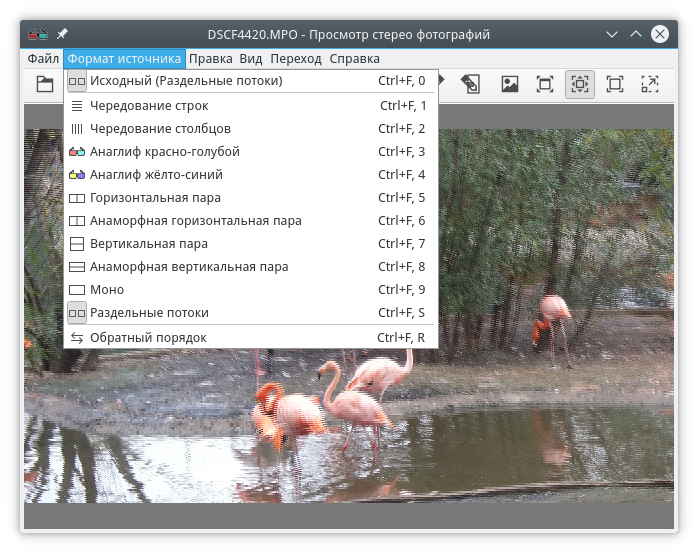
- MPO sources are detected automatically. For JPS files without a stereo descriptor, use the “Source Format” menu and select the actual layout, such as Side by Side for two views placed beside each other.
- Choose a display mode that matches your screen and glasses. Source format describes the file; display mode determines how it is shown.
- Check for stretched objects and unexpected depth. If the views are displaced, continue with alignment.
For two separate images, choose “File” → “Open separate files” and select the left-eye image first, then the right-eye image. This input method does not require an MPO file.
Limitations
The JPS extension does not guarantee a stereo descriptor. An incorrect source format can distort proportions or split the views incorrectly. An ordinary single 2D photo has no second view; selecting a stereo display mode does not create new depth from it.
To obtain ordinary JPEG images from MPO, see extracting views. See the opening reference and viewing reference for the underlying controls.
Documentation basis
Checked against the opening and viewing documentation on 2026-10-05. Target application version: 1.21.3.